In my last post, I covered tag concepts in Studio 5000 Logix Designer. Now that you know what tags are, I'll show you how to declare them.
Declare Tags in Studio 5000 Logix Designer
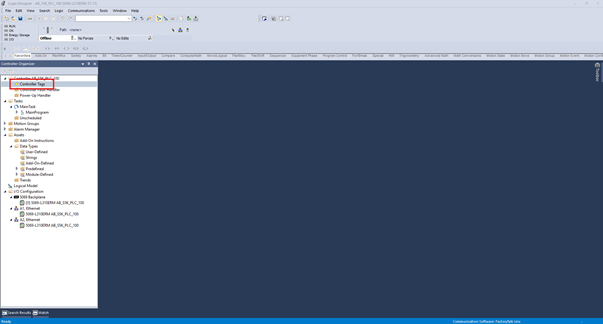
In Studio 5000 Logix Designer, tags are declared in the Tag Editor. To open the Tag Editor, click on the Controller Tags node in the Controller Organizer.
The Controller Organizer is a hierarchical tree that shows all of the content of a Studio 5000 Logix Designer project. If you accidentally close the Controller Organizer, you can open it again by clicking on View > Controller Organizer.
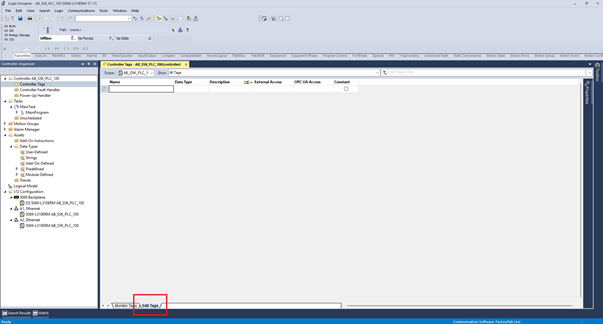
The Tag Editor is made up of two tabs:
- The Monitor Tags tab lets you monitor tags when you're online with a PLC,
- The Edit Tags tab lets you declare and edit tags
To declare new tags, activate the Edit Tags tab.
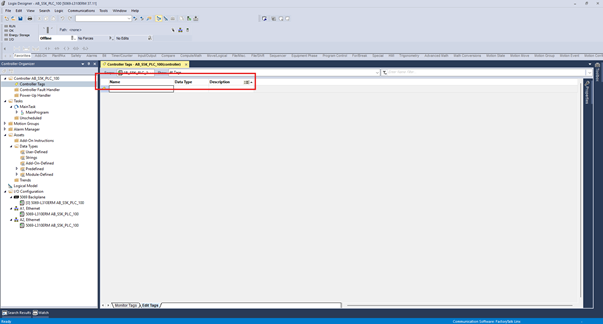
You can configure what columns are visible in the Tag Editor by right-clicking on any column name and using the Toggle Column menu to make columns visible or invisible.
For most projects, you'll only need to show the Name, Data Type, and Description columns. Name and Data Type are mandatory for every tag, and Description is the attribute you'll use most often beyond those two.
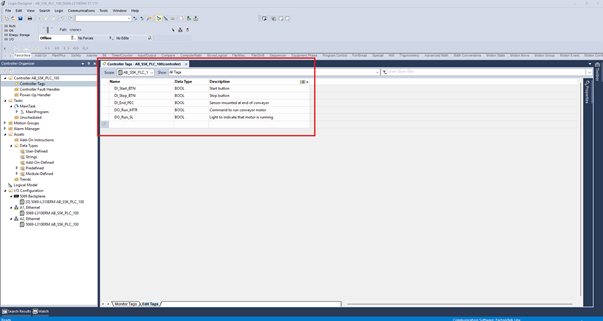
To declare a new tag, enter the name of the new tag along with the data type and, optionally, a description.
This process is repeated to create multiple tags.
Wrap Up
In this post, I showed you how to declare tags in Studio 5000 Logix Designer using the Tag Editor: opening it from the Controller Organizer, configuring which columns are visible, and entering a name, data type, and description for each tag.
Now that you know how to create tags, check out my other post on Ladder Diagram Concepts to learn how to put those tags to use in your program.
Learn PLC Programming in your browser
Learn PLC programming by building projects in your browser - no hardware or software required.
Then €29.97/month · Cancel any time